Tuesday, June 29, 2021


Thursday, June 24, 2021
Monday, June 21, 2021
Thursday, June 17, 2021
Tuesday, June 01, 2021
Have you seen the Vegan challenge on Twitter
I just saw this Twitter post that I found useful as I am looking to go Vegan and I need all the assistance I can get and this post took me to a lot of resources and I want to share with everyone that might need the motivation like I do. Here is the tweet-
Saturday, May 29, 2021

Wednesday, May 26, 2021
Free E-Books, Tutorials & Trainings
Get the best Tutorials, E-books, Trainings, Handbooks and Tips . Access the resources for Free here >>>>>>>> https://similarstep.com/free-e-books-tutorials-trainings/
Saturday, May 15, 2021

Thursday, May 13, 2021
Friday, January 22, 2021
Saturday, January 16, 2021
How to set up a Paypal account step by step
PayPal is a helpful tool that assists you to conduct transactions online like paying for some purchases, receiving for some sales or transferring cash to friends and loved ones. It has been one of the most popular systems of receiving and sending payments online for years
How can someone set up a PayPal account?
First Step
Go to Google.com and search for Paypal as in number1 and then click of the first search result as in number 2
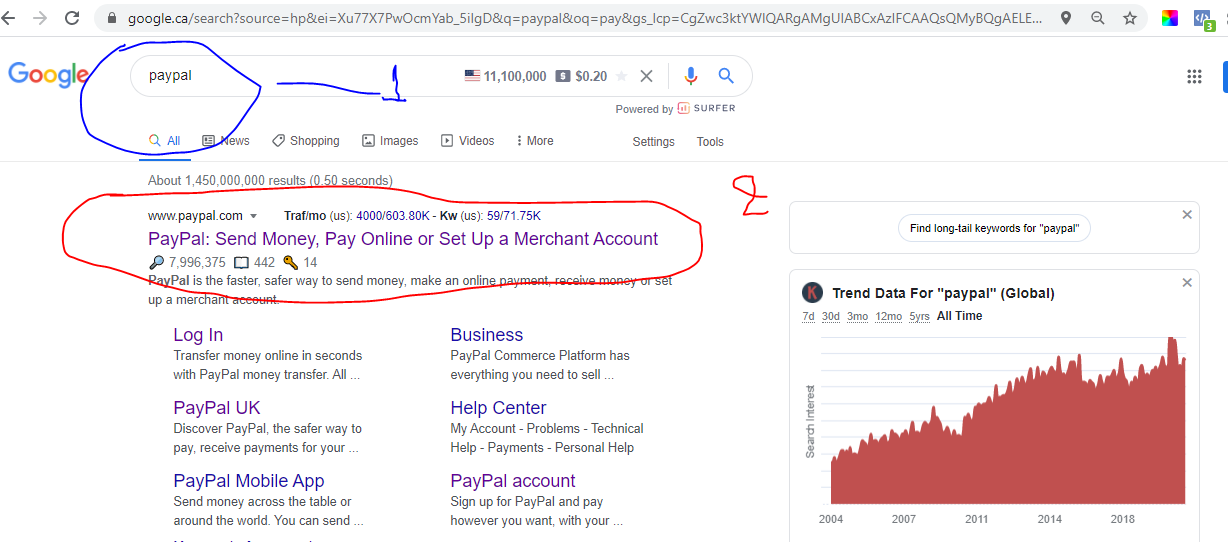
Then you will get a website that looks like the one below. The page may differ slightly depending on which country you are located. You may notice this if you compare screenshots A (paypal page when you use browser with UK extension) and B.(paypal page when you use browser with US extension)
A-

B-

Second Step
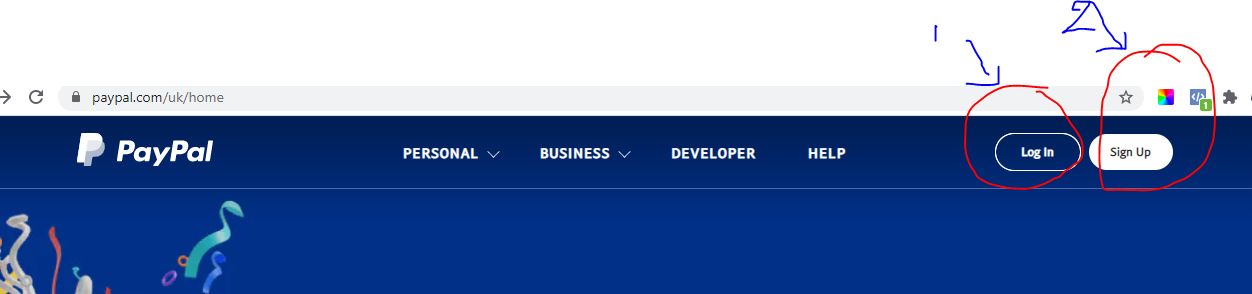
Here you have two options with to Log In or Sign Up. As a new user, you need to click on Sign Up button as in number 2 below.
It will take us to the types of accounts you need to chose from either a Personal or Business Account. We chose the first one Personal Account and then we click next.

After you have chosen to create a Personal Account and pressed next, a kind of advertisement like this may appear. Click on the cross as in number 2.


Third Step
You need to fill in your telephone number. The system will choose the country code as in number 1 and you need to add your mobile as in 2. For confirmation purposes, Paypal will send you SMS message to the number you have added.

Then, you go back to log in your account and fill in your details as in below

Then you type in your address, city and check the box of their terms
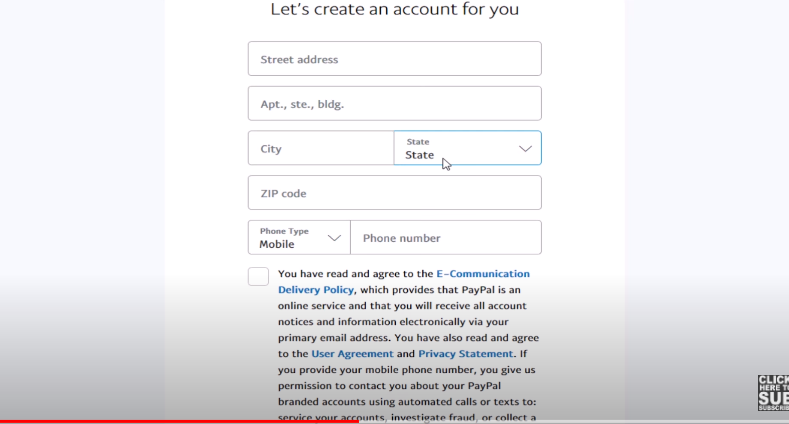
You may also link your debit card or credit card or a bank account to your PayPal account - see below

Fourth Step
You will see that your account has been successfully created as below. Now everybody is set up and ready to use for shopping, sending and receiving money.

When you click on Go to Your Account, you are officially in your brand new PayPal Account.page.

Fifth Step
As you can see, your balance is zero because it is a brand new account. You have different options;

With a PayPal account, you can transfer money from your account. You can transfer money back into your bank account as well.You can pay with your PayPal as millions of e-commerce websites accept it. You can also easily transfer money to other PayPal users, family members and friends.
Visit us at our
- FB page
Monday, January 04, 2021

Tuesday, December 29, 2020
Thursday, December 10, 2020
Tuesday, December 01, 2020
Thursday, November 26, 2020
Thursday, November 19, 2020
Zoom Tutorial For Beginners | How Zoom Works '(Arabic)
Tuesday, November 10, 2020
Zoom Tutorial For Beginners | How Zoom works
What is Zoom and how it works
Zoom is a video and audio conferencing service online. It is easy to use to keep in touch with friends, talk with family members or for business purposes.
How you can have a conference call with multiple people. They could be your friends, family members, colleagues, business partners and with people all over the world etc.
You see them through the cam, you hear them, you mute some you do not like and unmute when you are comfortable with others. You are able to talk to people all over the world from your smartphone, your tablet, your laptop or desktop.
Our focus will be on 2 areas:
A- How to host a conference call. You are in charge. You can invite people simply by sending the link to the people you like to join the call.
B- How to join someone who has invited you.
1-Search on Google for Zoom US. Sign up for free
There are several plans you can choose. But we will focus on Free plan

Go to plan and pricing and choose a plan. Choose Free version that host 100 people
2- In this free version, you have many benefits:
-You can have conference call with 100 people at the same time
-The call can last for 40 minutes
-If you have call with 1 person, it will go on for long time
-It is free for life. You do not have to pay anything

So, you can call your parents, friends, family members, your business partners ect. You can invite them all and have a great time together until 40 minutes.
After these 40 minutes, you can invite them to have a call for another 40 minutes.
3-Click on sign up. It is free.

Fill in your date of birth. If your are under 18 years old You will see this screen. This is to verify whether you are allowed or notWhether you meet their terms.

4-Ensure that your age is eligible to use Zoom.
Fill in your date of birth. If your age is eligible, you will see that the button Continue becomes blue

5-When you press Continue, you will see Sign Up page.

You can use many ways to sign up like with your Facebook profile or Google profile or with your email address.
Then you see this page that they inform that they sent an email to your email address that you used to Sign Up like here

6-Go to your email and activate your Zoom account

And you can activate your Zoom account at the same time as here

7-You will see Welcome to Zoom.
You can now fill in your names, email address, create a password and repeat your password

Then you can click on Continue. Step 7 may not be required since you already signed up with your email.
8-Then you can invite anybody you want
You can invite people by putting their email address and confirming that you are not a robot. You may skip this stage by clicking on Skip button
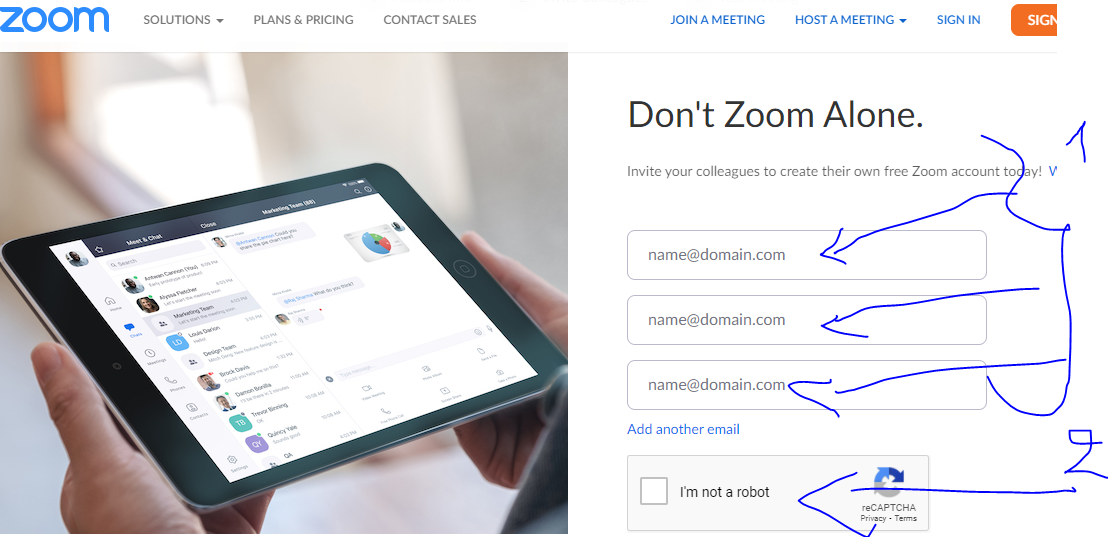
You can then start a test meeting or click on Go to My Account

9-This is how your profile looks.
If you want, now you can upload your profile picture from your computer

You can click on upload, then select your picture from your computer. After that you can crop the picture like in 2 below to show your face, thumbs, or the background. Then click on Save button
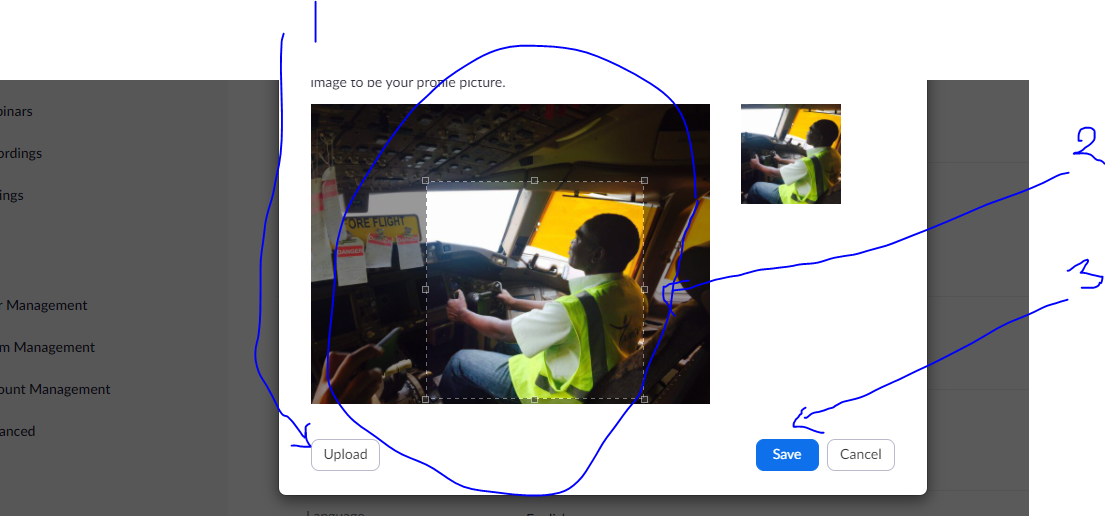
10- Host a meeting or a conference live with your friends
Go to Host a Meeting. Then you have 3 options/ With Video On, With Video Off, Share Screen only. You can click on With Video on

11-Download and Open
Click on Open Zoom Meetings. Then you are in. If it does not work, click on Download as in number 3 here
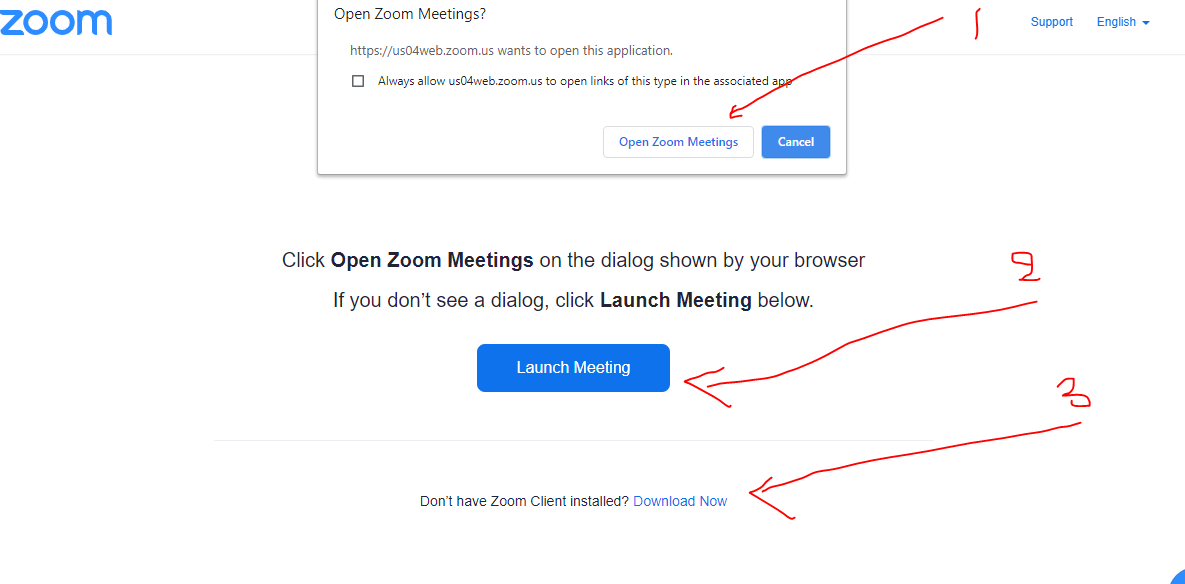
12-After Download and Launch
You will get this screen that you can see yourself as in 1. You can also test the Speaker and the microphone like in 2. If they function, you will hear sound meaning that audio is working. You can talk or say hello, you can hear yourself. So it is working.

So, you can adjust settings that suit you like audio, HD video, mirror yourself. You can close the video Icon, so no one will see you

You can choose a virtual background like you are in another place
13-Sharing the screen with the people
You can also share your screen on Google Chrome, Ipad, IPhone, desktop etc. I can go to Google and there I can write and show the participants what to do like telling them to Subscribe to my Channel or showing them the steps etc
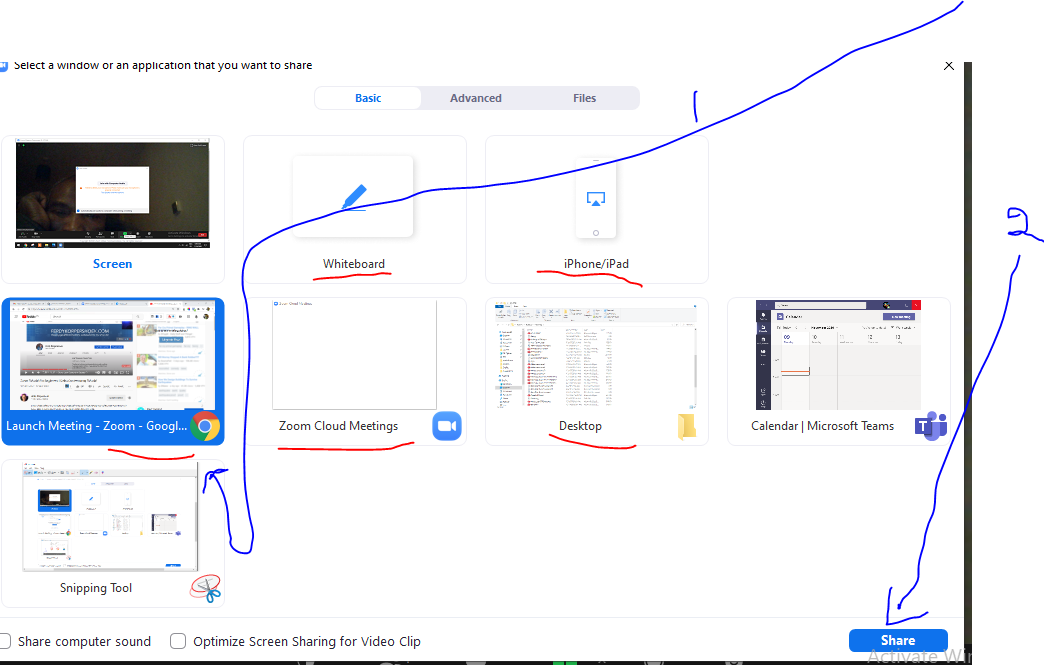
14-Inviting people
Click on the as in 1and add invite people through their yahoo, gmail default email address . You can also copy your Zoom URL link and go to YouTube , click on create a post and post your Zoom URL link inviting people to the conference. I can say hang out with me, then paste the link like this for example www.zoom.us/hang_out
You can go to my Whatsup group, Pinterest group, Facebook group or any other group and paste the Link
Every person you invited and accepted your invitation will be lined up as in number 2.
You can also copy your
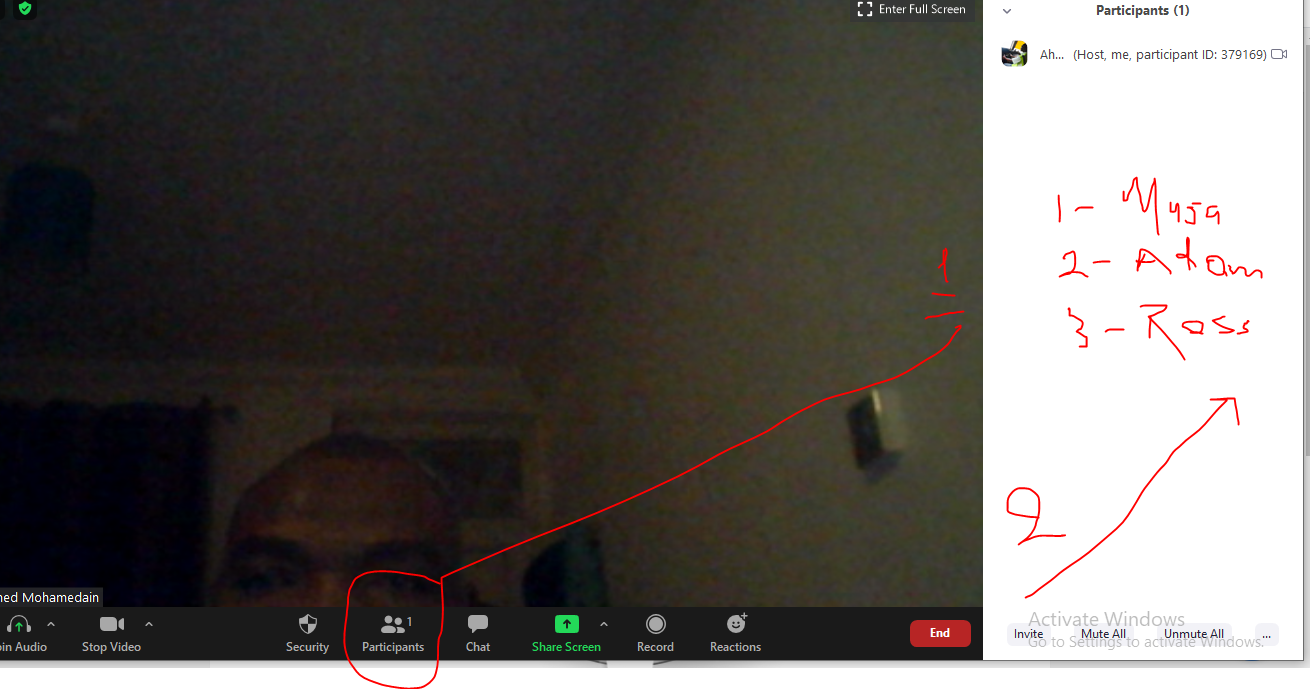
We can talk with everyone privately or publicly. We can share the screen to show stuff. If someone is talking too much or has a background noise disturbing other people, we can go to that person and mute her/him, or stop his video. I can unmute him and ask to start the video again.
I can mute all participants when they join. Then I can manually unmute them
15-End the meeting as a host
When you finish with the meeting, conference, you can click on this End button and Sign Out

16-Sign In
Youcan sign in to host or join or even schedule a meeting.

17-Invitation from someone
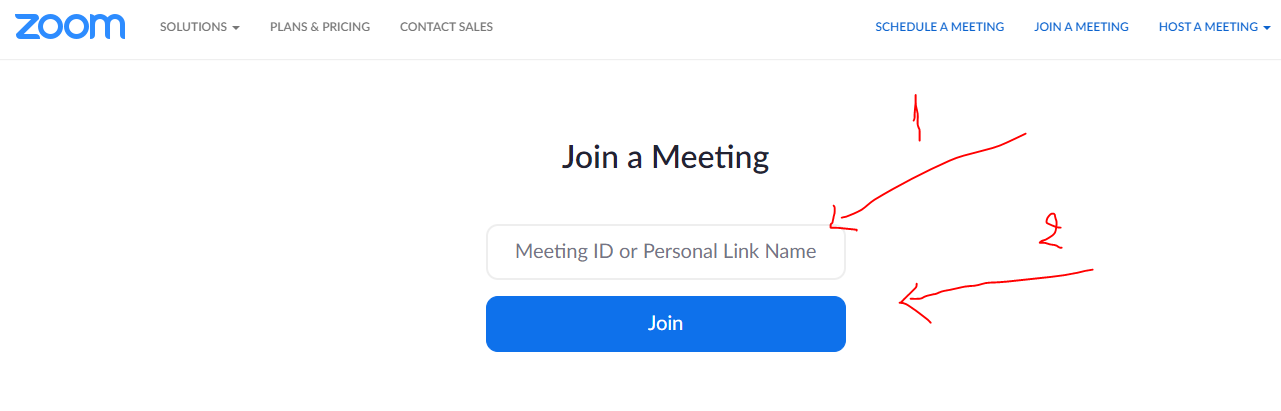
If someone invited us to join their conference, we can accept by typing the Meeting ID as in 1 clicking the button Join or click on the Personal Link to the meeting
18- Group Conversation
When you are in group conversation, call or conference, the person who is talking has yellow borders.
This is the basics of how to use Zoom both as a host or someone who joins the call. Now you can host and join online conferences with your friends, family members, business partners or infact with the whole world.
Feel free to comment, ask questions and share this article with your friends.